Managing multiple email accounts can quickly become frustrating. You might use Gmail for personal messages, Outlook for work, and another email service for a separate project. Constantly switching between browser tabs and inboxes makes it harder to stay organized and focused.
The good news is that you don’t need to manage every account separately. With the right desktop email client, you can bring your email accounts into one convenient workspace.
In this guide, we’ll explore practical ways to manage multiple email accounts, reduce inbox clutter, and build a more productive email routine.
Why Managing Multiple Email Accounts Can Be Difficult
Using more than one email account has become common. Many people separate personal and professional communication, while freelancers and business owners may manage several addresses for different clients or projects.
However, multiple accounts can create a few challenges:
- Constant account switching: Moving between browser tabs and separate inboxes interrupts your workflow.
- Missed messages: Important emails can get buried when you have several inboxes to check.
- Poor organization: Different accounts may have different layouts, settings, and notification systems.
- Lost focus: Repeatedly checking multiple inboxes makes it harder to concentrate on important tasks.
- Wasted time: Small actions, such as finding a conversation or checking another account, add up throughout the day.
The solution isn’t necessarily to reduce the number of email accounts you use. It’s to make managing them easier.
1. Use a Desktop Email Client for Multiple Accounts
One of the simplest ways to improve your email workflow is to use a desktop email client.
Instead of opening several browser tabs, you can access supported email accounts from a dedicated application on your computer. Depending on the client, you may be able to manage account settings, read messages, and switch between inboxes without leaving the same workspace.
A desktop email client can be especially useful if you regularly use Gmail and Outlook or maintain separate personal and work accounts.
Why it helps:
- Keeps email in one convenient application.
- Reduces the need to switch between browser tabs.
- Makes checking multiple accounts part of a consistent routine.
- Gives you a dedicated place for email on your computer.
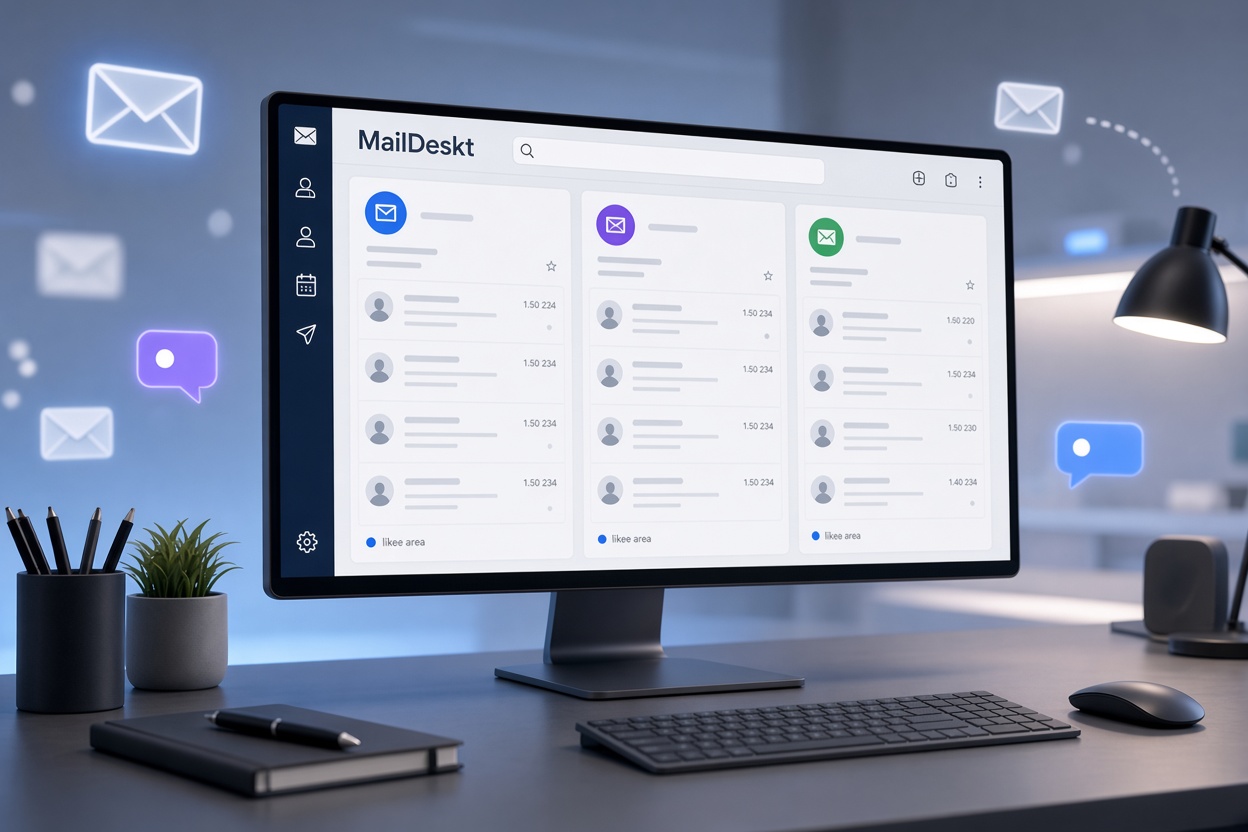
If you prefer a focused desktop experience, MailDeskt is one option to consider.
2. Choose an Email Client That Fits Your Workflow
Not every email client offers the same experience. Some focus on advanced configuration and extensive customization, while others prioritize simplicity and a clean interface.
Before choosing an application, consider what matters most to you.
Look for support for your email providers
Make sure the application supports the services you already use. If your workflow depends on Gmail, Outlook, or Resend, check that your chosen client supports the accounts you need.
Consider your operating system
If you work across different computers, availability matters. Choose an application that fits your operating system and daily setup.
MailDeskt is available for both Windows and Mac, making it an option for users in either desktop environment.
Prioritize an interface you enjoy using
Email is an application many people open every day. A cluttered interface can make routine tasks feel more complicated than they need to be.
Look for a layout that makes your inbox easy to navigate and keeps the most important actions accessible.
Avoid unnecessary complexity
Advanced features are valuable when you need them. But if your primary goal is to read, organize, and respond to messages, an application that emphasizes simplicity may be a better fit.
3. Separate Your Email Accounts by Purpose
Adding all your accounts to one application is only part of the solution. You also need a clear system for deciding which account to use.
A simple structure can make a noticeable difference:
- Personal email: Family, friends, shopping receipts, and personal subscriptions.
- Work email: Colleagues, meetings, clients, and professional communication.
- Project email: Messages connected to a specific business, side project, or freelance client.
Keeping these purposes distinct helps you choose the right address when sending a message and makes it easier to understand why a particular email arrived.
If your email client supports account-specific settings or visual distinctions, use them to make your accounts easier to identify.
4. Build a Consistent Email Routine
Checking email every few minutes can interrupt focused work. Instead, try establishing a routine that matches your responsibilities.
For example, you could review your inbox at the beginning of the workday, respond to important messages after your first focused work session, and check again before finishing for the day.
Your ideal schedule depends on your role. People who work in customer support or handle urgent requests may need to check more frequently, while others can benefit from longer periods without interruptions.
A few useful habits include:
- Review important messages before less urgent ones.
- Respond to quick requests when appropriate.
- Set aside longer blocks for messages that require careful attention.
- Unsubscribe from newsletters you no longer read.
- Close email when you need uninterrupted time.
The goal isn’t to ignore your inbox. It’s to make checking email a deliberate activity rather than a constant distraction.
5. Reduce Inbox Clutter
A crowded inbox can make even a good email application feel overwhelming.
Start by removing messages you no longer need. Archive completed conversations when appropriate, unsubscribe from unwanted mailing lists, and use folders or labels if your email service supports them.
You can also establish a simple rule for incoming messages: decide whether each message requires a response, needs to be saved, or can be archived or deleted.
Don’t spend hours trying to achieve a perfectly empty inbox. A practical system that helps you find important messages is more valuable than an elaborate organization method you won’t maintain.
6. Consider a Cleaner Desktop Email Experience
Your email workflow depends on more than features alone. The application you use also affects how comfortable it feels to manage messages throughout the day.
MailDeskt is a desktop email client for Windows and Mac designed for people who want a clean, modern way to manage their email.
It supports Gmail, Outlook, and Resend, giving users who work with these services an option for bringing their email into a dedicated desktop application.
MailDeskt may be worth considering if you want:
- A clean, modern desktop interface.
- Support for Gmail, Outlook, and Resend.
- An application available on Windows and Mac.
- A focused email experience without making customization the center of your workflow.
The right choice depends on your priorities. If you enjoy extensive configuration and a large ecosystem of extensions, a more customizable client may suit you better. If you prefer a simpler, more polished experience, MailDeskt is an alternative to explore.
7. Make Email Easier to Manage Every Day
You don’t need a complicated productivity system to improve your email habits. A few deliberate changes can make your inbox easier to handle.
Start by bringing your supported accounts into a convenient workspace. Give each account a clear purpose, establish a regular checking routine, and reduce the clutter that makes important messages difficult to find.
Then choose an email client that matches how you like to work. The best application isn’t necessarily the one with the most features. It’s the one that helps you manage your messages efficiently and comfortably.
Final Thoughts
Managing multiple email accounts doesn’t have to mean juggling browser tabs, switching between applications, and constantly wondering whether you’ve missed something important.
A suitable desktop email client, a clear account structure, and a consistent routine can help you create a more organized email workflow.
If you’re looking for a clean, modern desktop email experience on Windows or Mac, give MailDeskt a try.
Get 7 days of free access with the full experience unlocked. After your trial, you can unlock MailDeskt for $49 — 30% off the regular price.
Download MailDeskt and make managing your email a simpler part of your day.
Leave a Reply