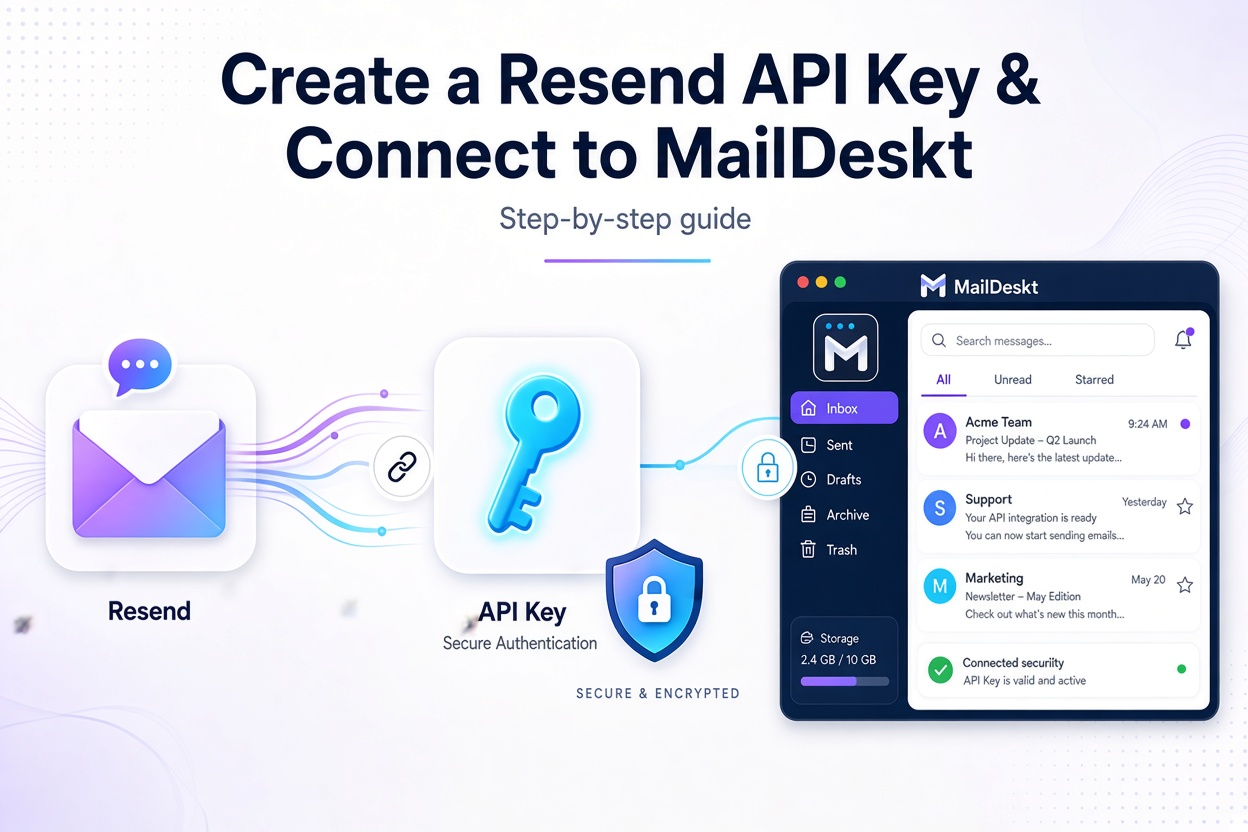
In this post, I’ll show you how to create an API key in Resend so you can connect your Resend email account to MailDeskt.
To do this, follow these steps:
You will see:
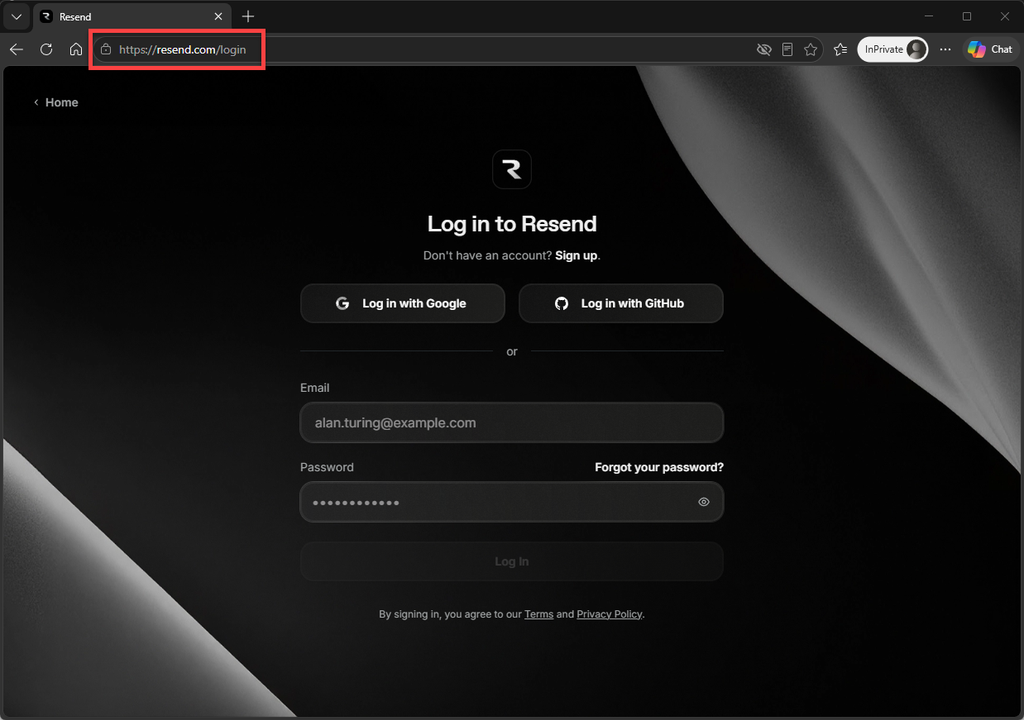
Go to the Resend sign-in page: https://resend.com/login
Sign in to your Resend account.
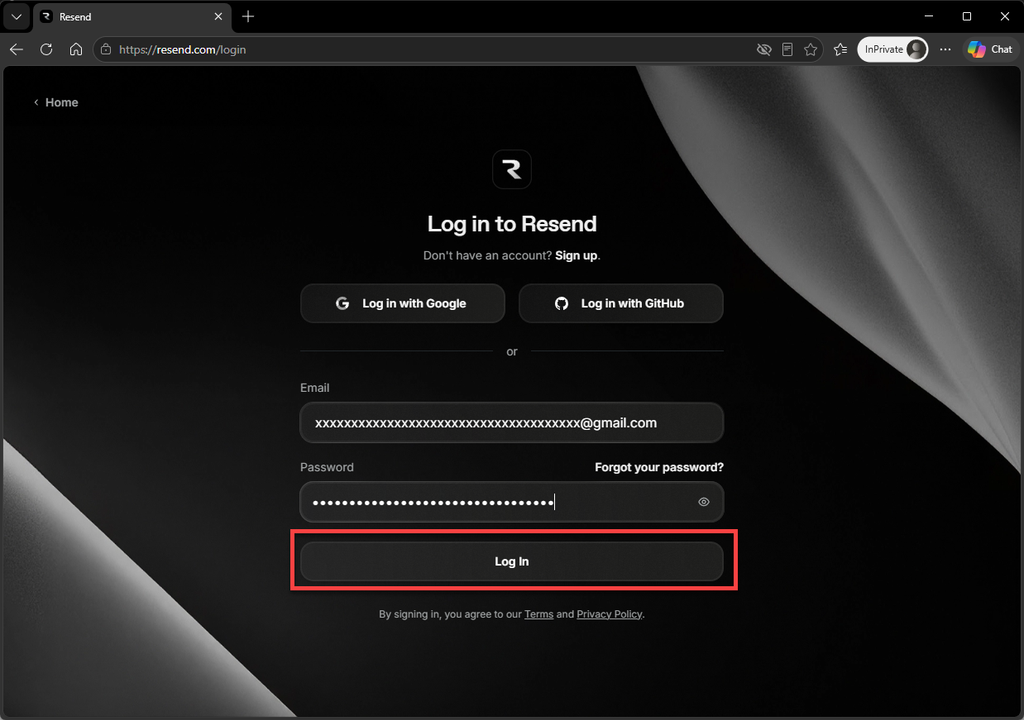
Next, enter your Resend account credentials, including your email address and password:
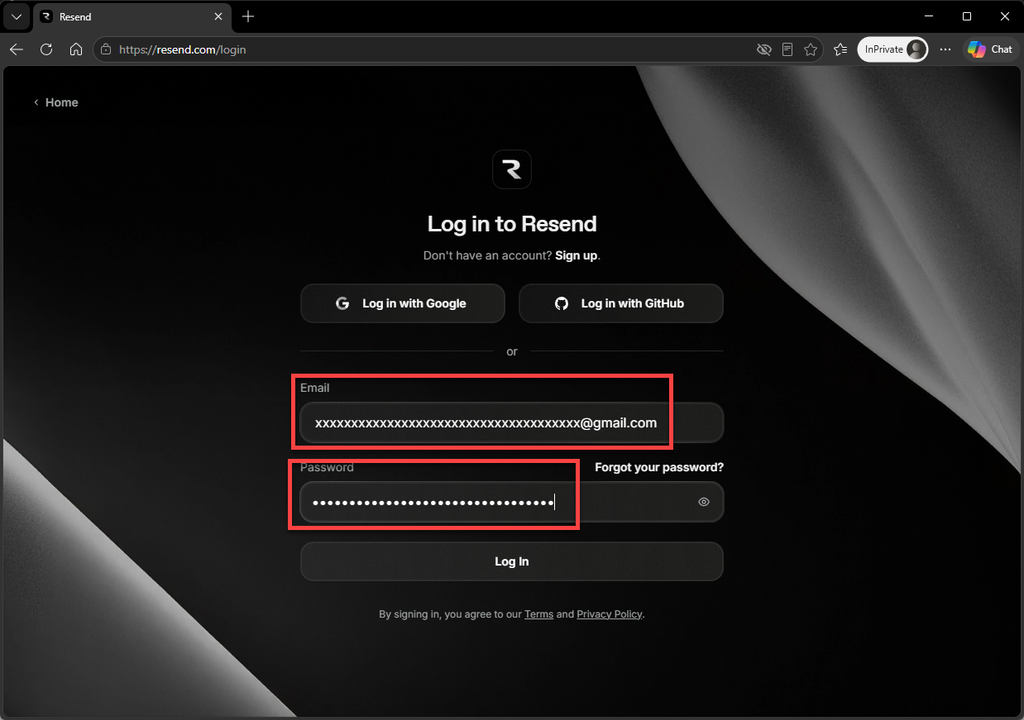
Next, click Log In to sign in to your Resend account. In this post, I’ll use my Resend account as an example:
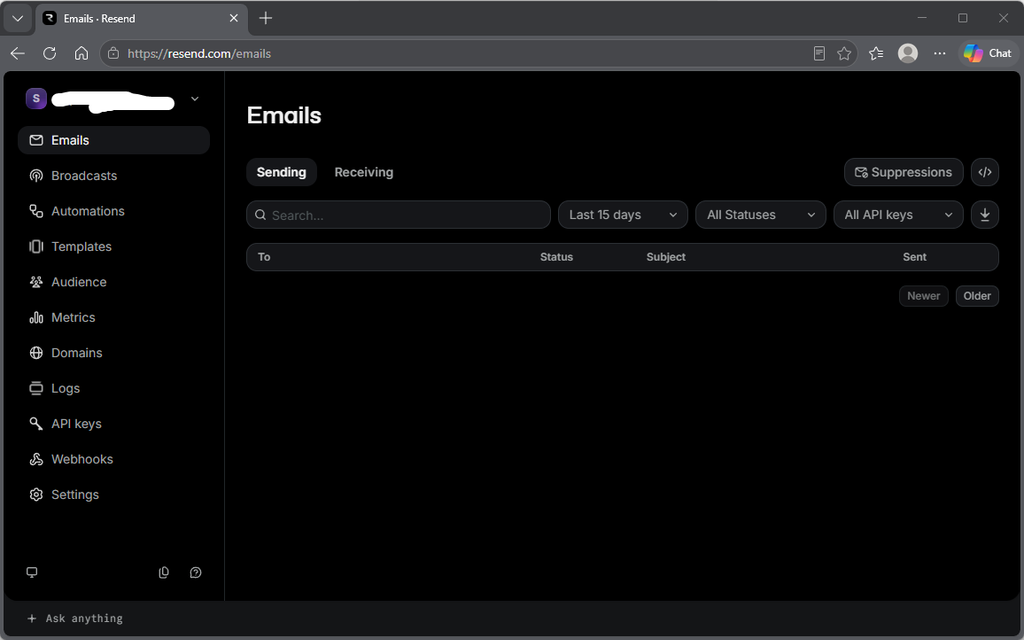
Next, you will see the Emails page, as shown in the image below:
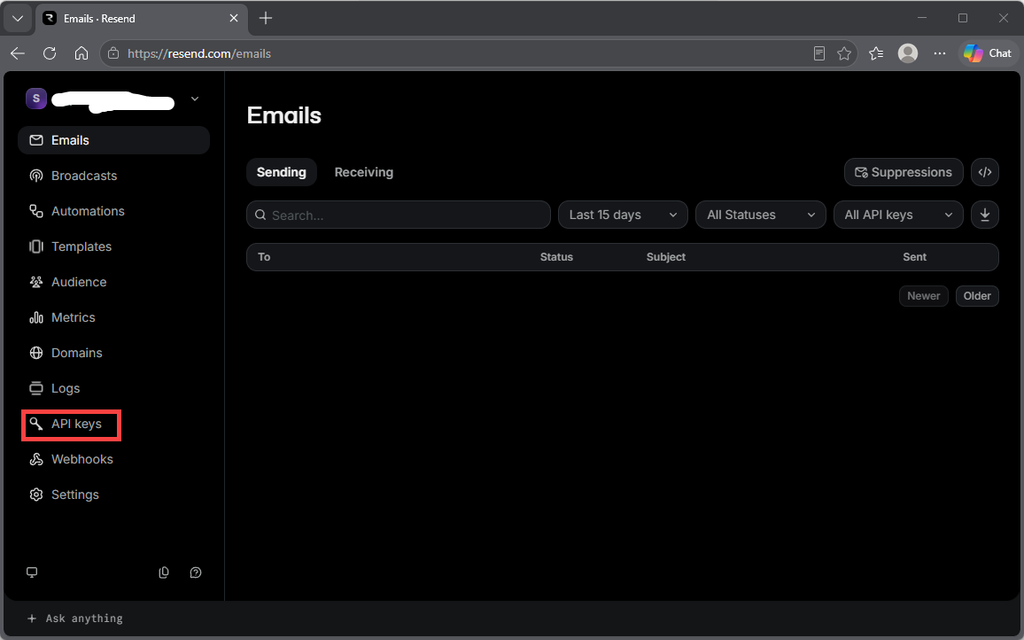
Next, click API Keys to open the API Keys page:
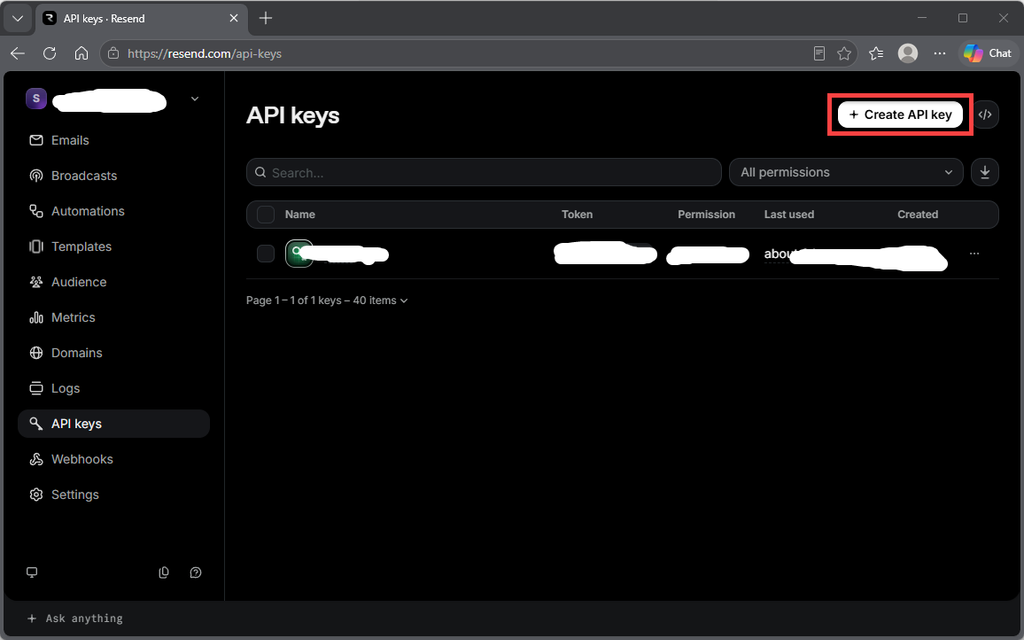
Then, you will see the API Keys page, as shown below.
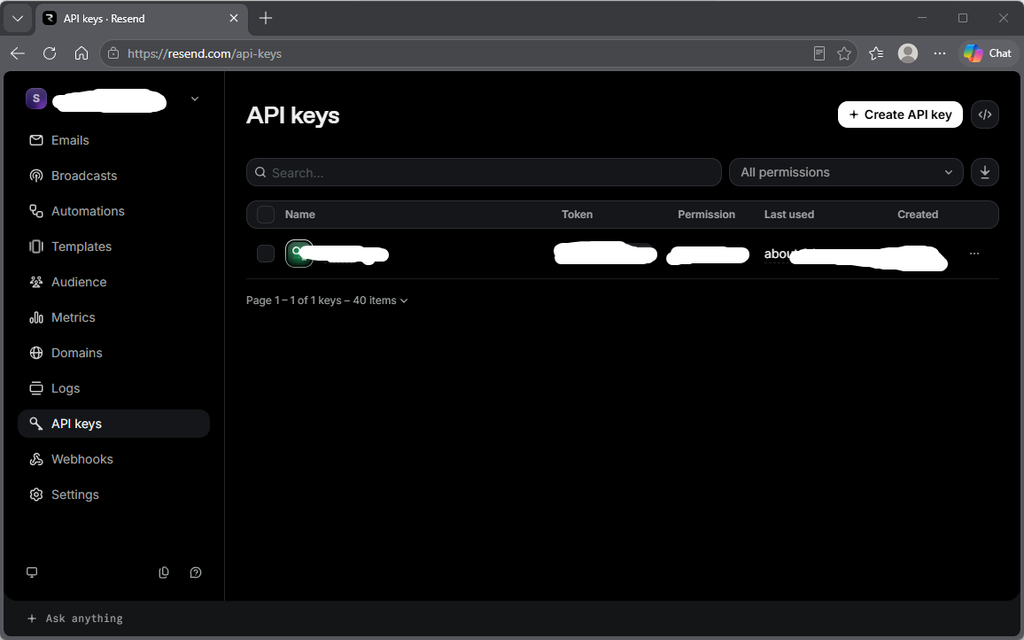
Next, click Create API Key.
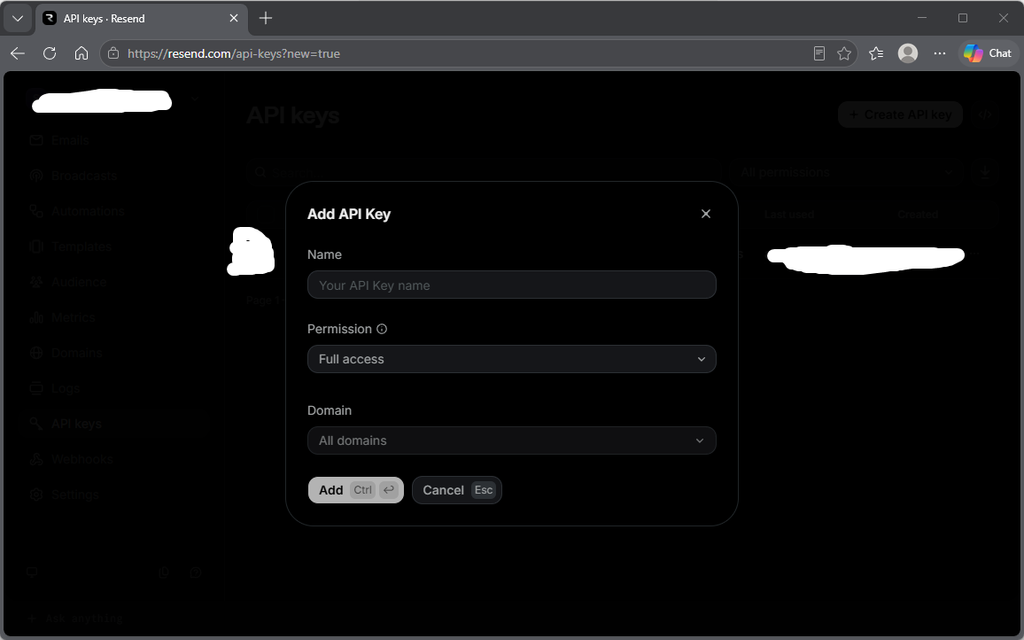
Next, a pop-up window will appear, as shown below.
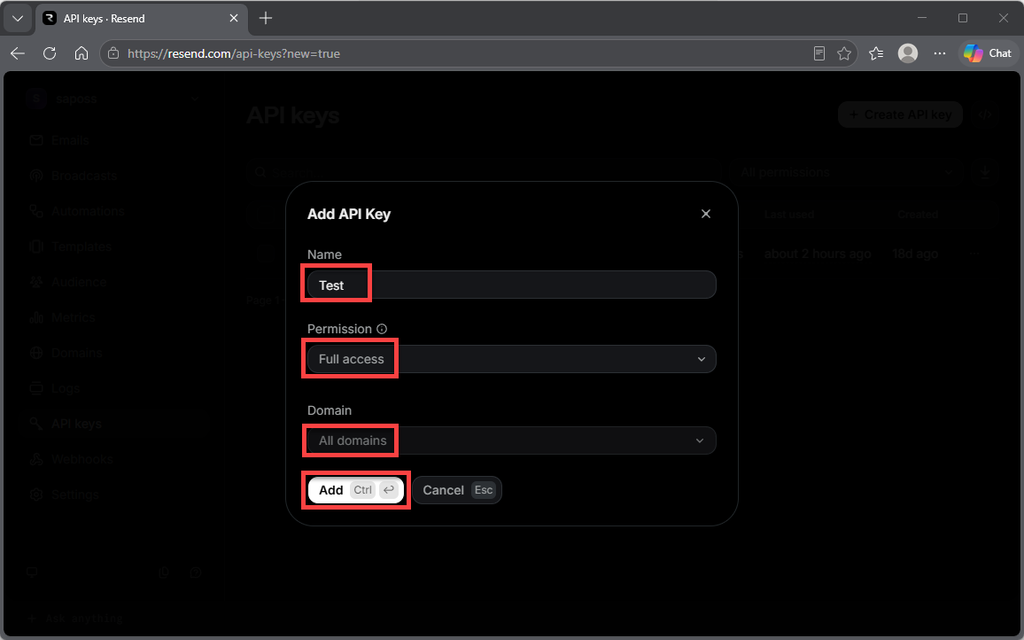
Next, enter Test as the Name, select Full Access for Permission, and choose All Domains for Domain. Then, click Add.
Finally, you will see that the new API key has been created successfully.
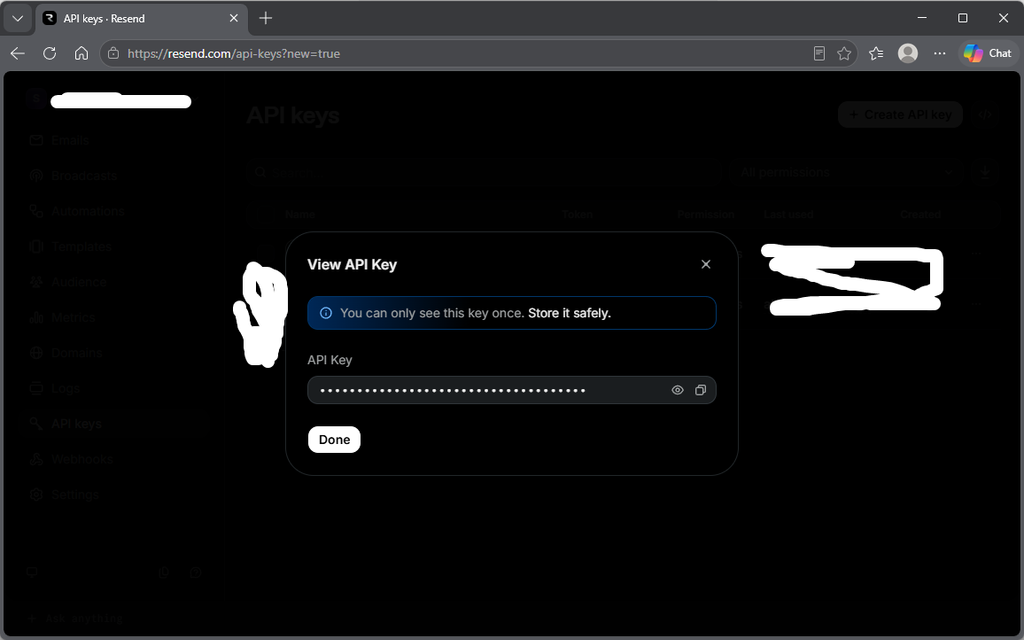
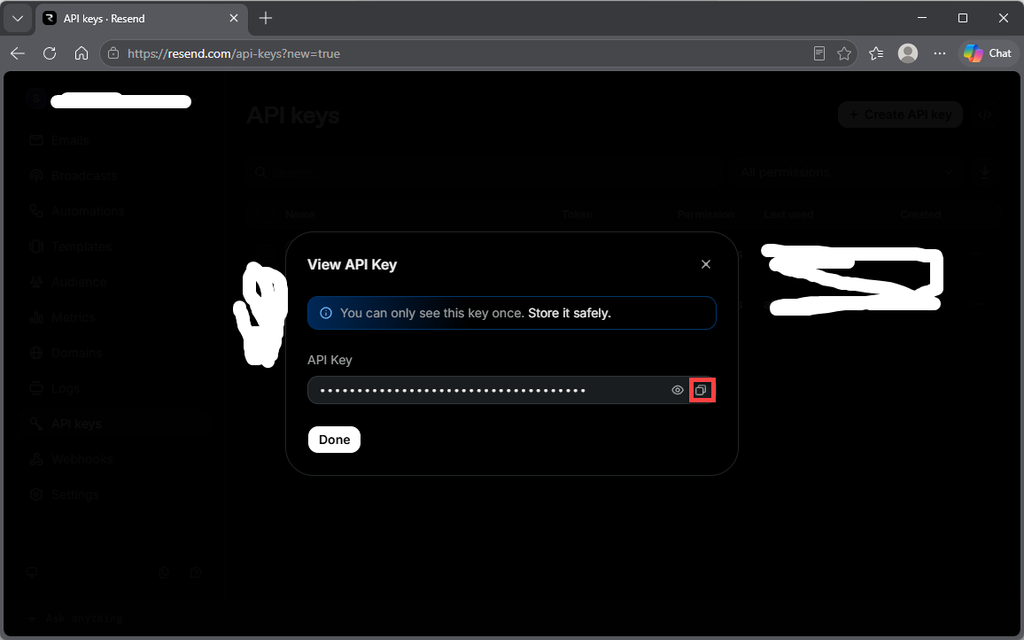
Next, click the Copy icon to copy the API key, as shown in the image below.
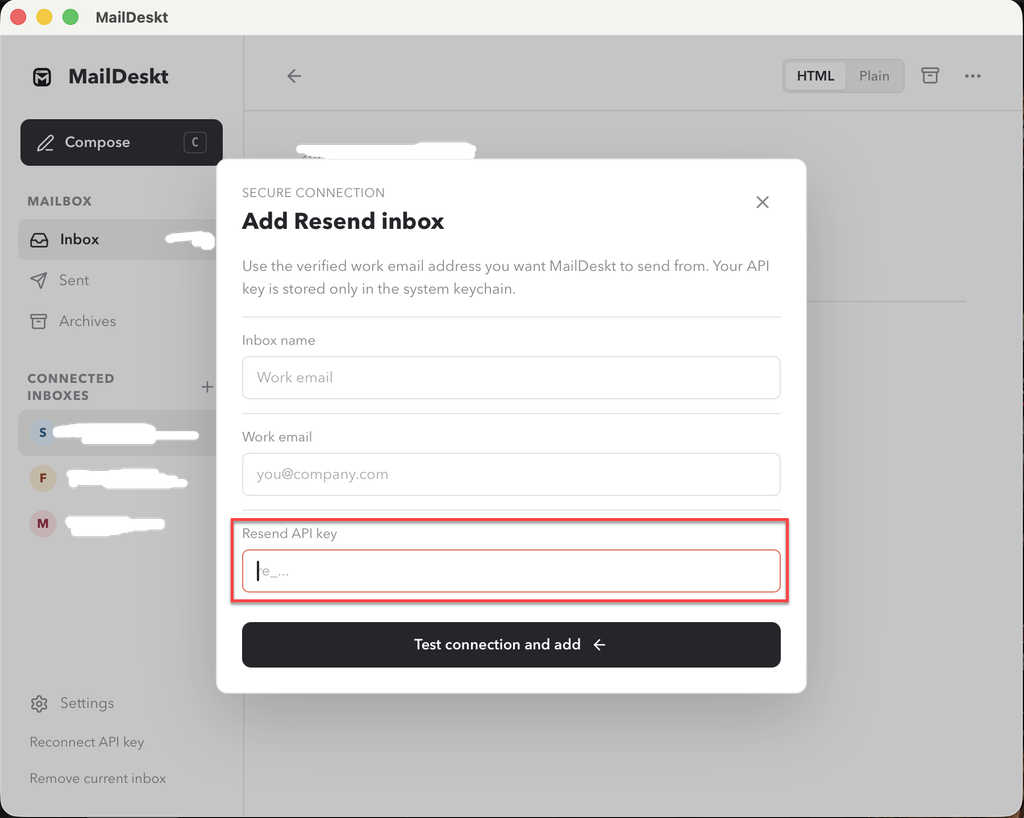
Finally, open MailDeskt and enter the API key you copied into MailDeskt to connect your Resend email account, as shown in the screenshot below.
Completed.
Conclusion
By following the steps above, you can easily create an API key in Resend and use it to connect your Resend email account to MailDeskt. Once the API key has been added to MailDeskt, you can connect your Resend account and start using it to send emails through MailDeskt.
Make sure to keep your API key secure and avoid sharing it publicly, as it provides access to your Resend account.
Ready to get started? Download MailDeskt now and enjoy a 7-day free trial with full access to all features—completely free!
Leave a Reply